

Key Takeaways
- Match desktop specifications to job requirements: Consider the software, workload, and performance needs of each role instead of giving every employee the same configuration.
- Consider the full cost of desktop computing: Factor in power consumption, cooling, desk space, monitors, keyboards, mice, and other accessories when planning your budget.
- Plan for future upgrades: Choose systems with room for additional memory and storage to extend their useful life and reduce replacement costs.
- Prepare for deployment: Plan configuration, software installation, cabling, and physical setup before delivery to ensure desktops are ready for use from day one.
Recommended Read: Buying Laptops in Bulk for a School or Office: A Practical Specification Checklist
For laptop orders, the most important question to ask is: What will this person be doing? But with desktops, there’s a second question that matters more: What does this desk actually look like?
Buying desktops in bulk for an office requires more than choosing the right processor, RAM, and storage. Unlike laptops, desktop computers come with separate components that must work together, fit the available workspace, and support employees’ daily tasks.
For IT teams and procurement managers, getting the decision right means considering everything from employee roles and desk space to power consumption, peripherals, upgrade options, and deployment. This practical checklist covers the key factors to consider before placing a bulk desktop order, helping your business avoid unnecessary costs, reduce deployment challenges, and build a reliable office setup.
MATCH THE SPEC TO THE ROLE, NOT THE DEPARTMENT
A common mistake in technology procurement is choosing a specification based on the department that will use the device rather than the actual work it needs to perform. Not everyone in Finance needs a high-performance workstation. Not everyone in Marketing needs the same laptop. And not every employee needs the most expensive device in the catalogue.
Understand the software, workload, mobility requirements, security needs, and performance expectations. Then match the processor, memory, storage, graphics, and other specifications to those demands.
The goal is to give every employee the right tools to perform, without paying for capacity they don’t need or compromising on what they do.
For IT teams and procurement managers, better specification matching means smarter spending, fewer performance bottlenecks, and technology investments that deliver real business value.
A sensible desktop fleet usually splits into two or three tiers, not one:
- Standard productivity desktops (Intel Core i5 or equivalent, 8GB RAM, 256GB SSD) for email, documents, spreadsheets, and browser-based work. This covers the majority of seats in most offices.
- Power-user desktops (Core i7 or equivalent, 16GB RAM, 512GB SSD, a dedicated graphics card where relevant) for design, data analysis, video work, or any role running multiple demanding applications at once.
- Fixed-function desktops for roles like reception, POS, or basic data entry, where a lighter, lower-cost configuration genuinely does the job without over-specifying.
Getting this split right is where the real savings in a bulk order live. Overspecifying thirty standard seats to match the five power users wastes budget on hardware nobody needed. Underspecifying the five power users to save money on the group average just moves the cost from procurement to lost productivity.
POWER, HEAT, AND NOISE: THE HIDDEN COSTS OF DESKTOP COMPUTING
A laptop is designed for efficiency; a desktop workstation, particularly one with a high-performance processor or dedicated graphics, can draw considerably more power under load. Multiply that across an entire office, and the difference becomes a procurement consideration, especially for businesses that rely on generators or inverter systems during power outages.
Before finalising a desktop order, calculate the expected power consumption across the full deployment, not just per machine. Check whether the office’s electrical circuits and backup power systems can support the additional load without compromising reliability or increasing operating costs.
A room filled with desktop towers generates heat that the air-conditioning system must remove. Cooling requirements, ventilation, and fan noise can all affect the comfort and productivity of employees, particularly in densely occupied, open-plan offices.
These are not reasons to avoid desktops, but to plan properly. Actual power consumption depends on the hardware configuration and workload, and the difference between desktops and laptops varies by model.
The cost of a computer goes beyond its purchase price. Power requirements, cooling, noise, and the office environment should all inform the decision before procurement is finalised.
Choosing the Right Accessories for Your Office: Monitors, Keyboards, and Mice
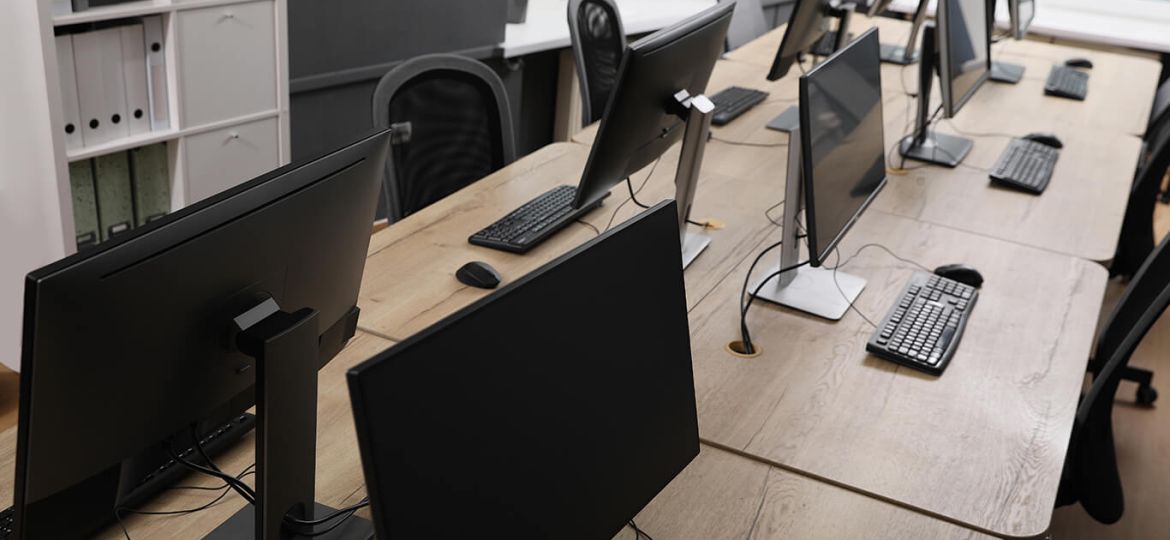
With a laptop, the screen and keyboard come built in. With a desktop, they’re separate purchasing decisions, and if not properly outsourced through an authorised distributor, they end up with mismatched monitors, inconsistent resolutions, different stand heights, and peripherals sourced from multiple suppliers over time. For bulk desktop deployments, standardising monitors, keyboards, and mice alongside the desktop itself is just as important as choosing the right specifications for the tower.
Using a consistent monitor model across the office simplifies maintenance and replacement. If a unit fails, IT teams can easily swap it with a spare without introducing differences in screen size, resolution, connectivity, or mounting requirements. Standardised peripherals also make inventory management, future procurement, and support more straightforward.
Consistent monitor sizes, adjustable stands, appropriate screen positioning, and comfortable input devices also make it easier to establish ergonomic workstations across the office.
UPGRADABILITY: BUYING FOR THE NEXT THREE YEARS, NOT JUST THE NEXT THREE MONTHS
A desktop’s biggest practical advantage over a laptop is that it can often be opened up and upgraded- more RAM, a larger drive, sometimes a better graphics card- without replacing the whole machine. That advantage only pays off if the original purchase leaves room for it.
A desktop bought with its RAM slots fully populated at purchase, or a case too small to accept a second drive, has quietly thrown away the one advantage desktops have over laptops in a fleet replacement cycle. Before finalising a bulk order, it’s worth checking whether the chosen configuration has visible headroom: an empty RAM slot, a spare drive bay, a case that can accept a basic upgrade two or three years in without needing to be opened up and rebuilt from scratch.
DEPLOYMENT: DESKTOPS NEED TO BE READY BEFORE THE DESK IS
A laptop can be configured centrally and handed to a staff member wherever they happen to be sitting that day. A desktop has to be physically unboxed, assembled, cabled, and set up at the exact desk it’s going to live at, which means deployment for a desktop fleet is as much a logistics exercise as a technical one.
For an office turning on forty new seats at once, this means the setup work, imaging the machine, configuring email and security settings, installing approved software, ideally happens before the desktop is delivered to its final desk, not after.
Conclusion
A desktop fleet rewards planning that a laptop fleet mostly forgives. The physical space, the power draw, the monitor standardisation, the upgrade headroom, none of these show up as a line item on a typical quote, but all of them show up as a problem within the first month if they’re skipped. The reseller or procurement lead who walks the floor plan, splits the spec by role, checks the power budget, and standardises the peripherals before placing the order is the one whose forty-desk rollout actually works on day one, not the one still troubleshooting mismatched monitors and tripped circuits three weeks after the new hires have already started.
FAQS
- Should every desk in the office get the same desktop spec, or does it need to vary by role?
It should vary, at least across two or three tiers. A single average spec either overpays for standard seats or underdelivers for power users, and getting the tiering right is usually where the real budget savings in a bulk order come from. - How much power draw should we plan for when ordering desktops in bulk?
There’s no universal number; it depends on the specific models and how many are running simultaneously, but the calculation should be done for the full room, not per machine, and checked against the office’s actual circuit capacity and backup power setup before the order is placed. - Is it worth paying more for desktops with upgrade headroom, or just buying new again in a few years?
For most offices, a modest upgrade down the line (more RAM, a larger drive) costs a fraction of a full replacement and extends the useful life of the fleet by a meaningful margin. Buying with headroom upfront- an open RAM slot or drive bay- usually costs little extra and keeps that option available later.
